
Admin Bar 5.8 is out with some major changes in how your developers and content authors will interact with it, including a new mobile mode and the ability to move Admin Bar out of the way when it’s over important content. There are also two new themes, two new widgets, and several improvements in a11y and i18n features that are more in line with how the Craft CMS Control Panel works.
Mobile Mode
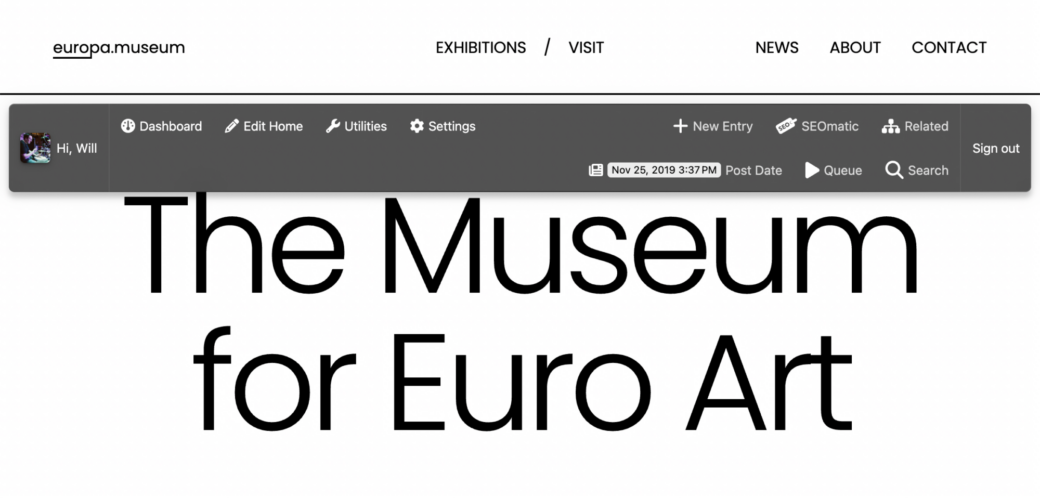
Raise your hand if you’ve been using Admin Bar for a long time and remember the old responsive view that displayed Admin Bar as a fullscreen menu on mobile devices. This feature is back under a new setting, called Mobile Mode. When you turn on mobile mode, Admin Bar will switch to a single button on thinner screens. Clicking this button will display Admin Bar as a vertical menu that fills the screen. On wider screens, Admin Bar will continue to look like the full horizontal toolbar.
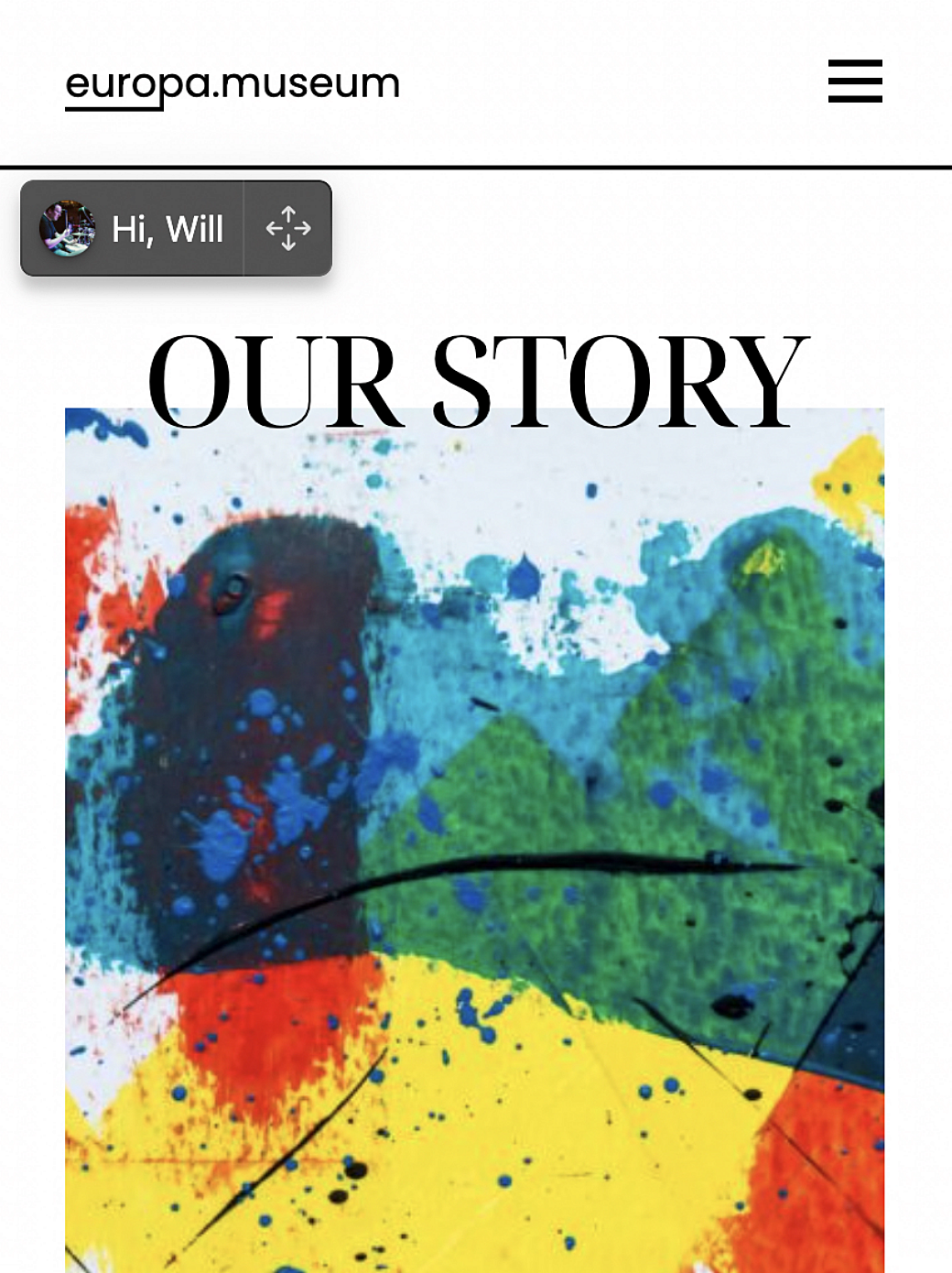

Toolbar Toggle
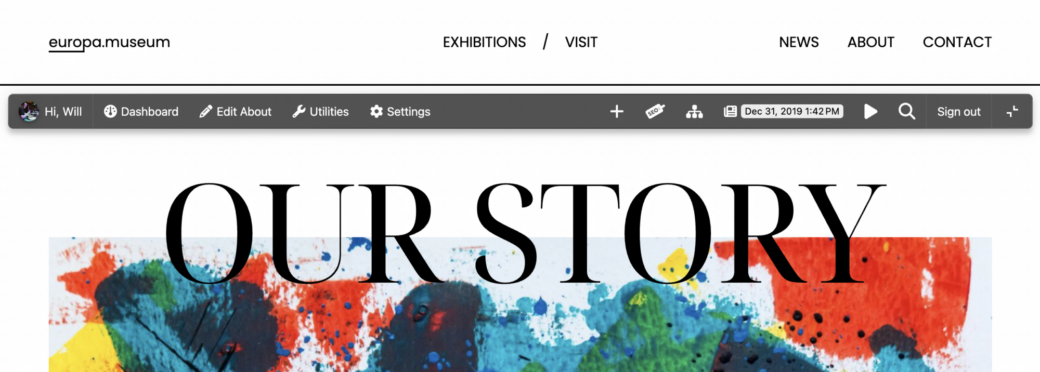
If you would like to toggle Admin Bar on all screen sizes, you can enable the Toggle Button setting. This will let you collapse the horizontal toolbar to get it out of the way.
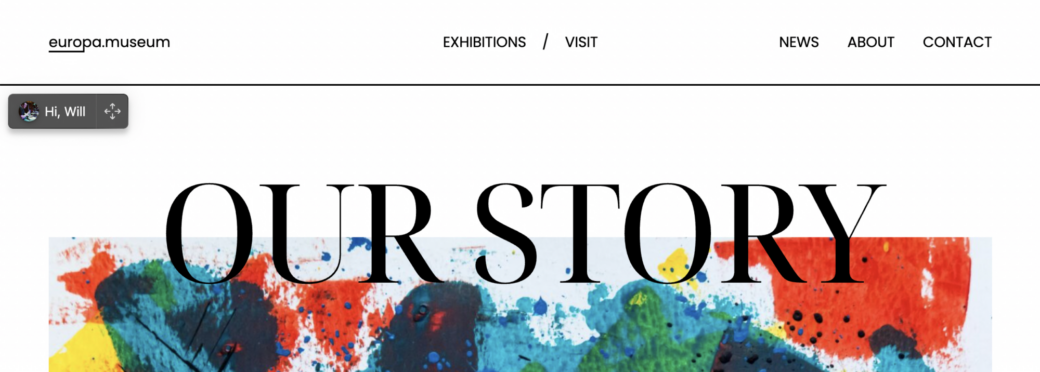
If you enable the Toggle Button Draggable setting you can also move the toggle button that appears when either Toggle Button or Mobile Mode are enabled.
Keyboard and Accessibility
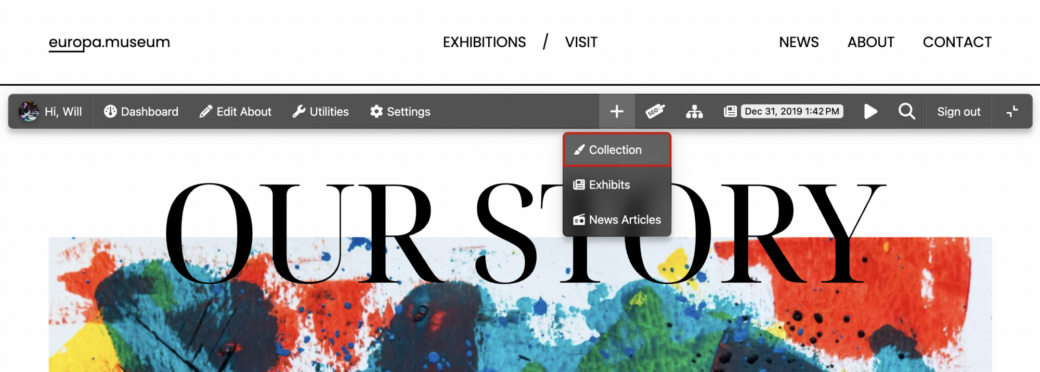
Admin Bar can now be controlled through keyboard navigation. You can tab through buttons along Admin Bar and when you get to an Admin Bar widget that opens up a popover, you can use the up or down arrow to open the popover. If there are buttons inside the popover, pressing up or down will cycle through the buttons.
For folks who use a screen reader, there are several new ARIA labels and visually-hidden descriptions that explain what different buttons do.
Translations
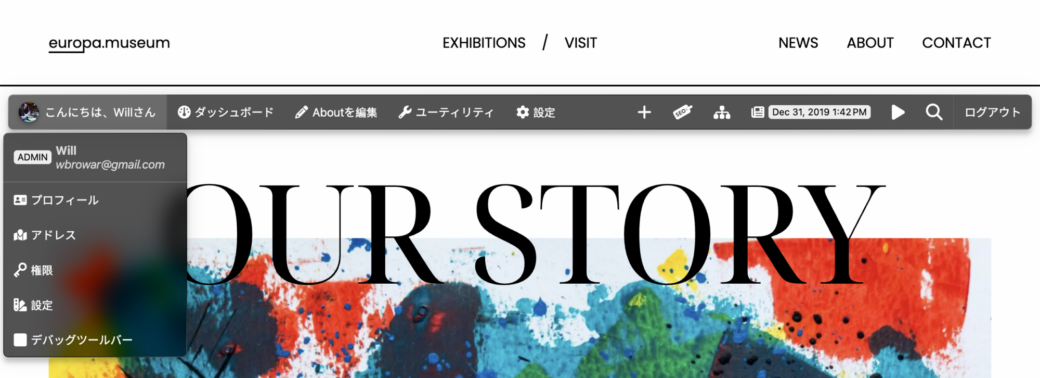
Admin Bar is now fully translated for all of the text and labels on the front-end toolbar. Now, when a user logs into Craft CMS and goes to the front end, Admin Bar will now be translated to the user’s preferred language—regardless of the language used for the front-end content. If that language reads right-to-left, Admin Bar will automatically switch to RTL.
New Craft CMS Widgets
Two new widgets have been added and can be enabled in the Admin Bar plugin settings.
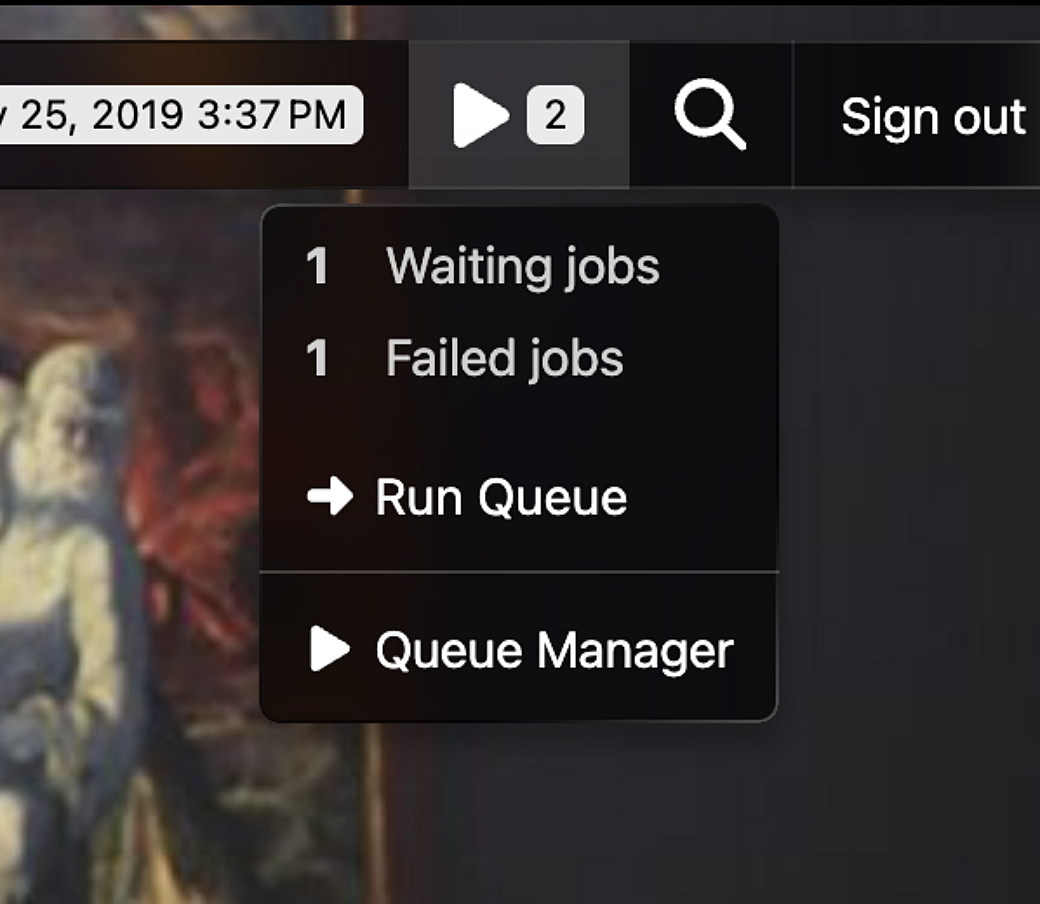
Lists jobs waiting in the queue and links to the Queue Manager. If any jobs are waiting to be run, the Queue widget will run them, just like the Craft CMS CP does on page load.
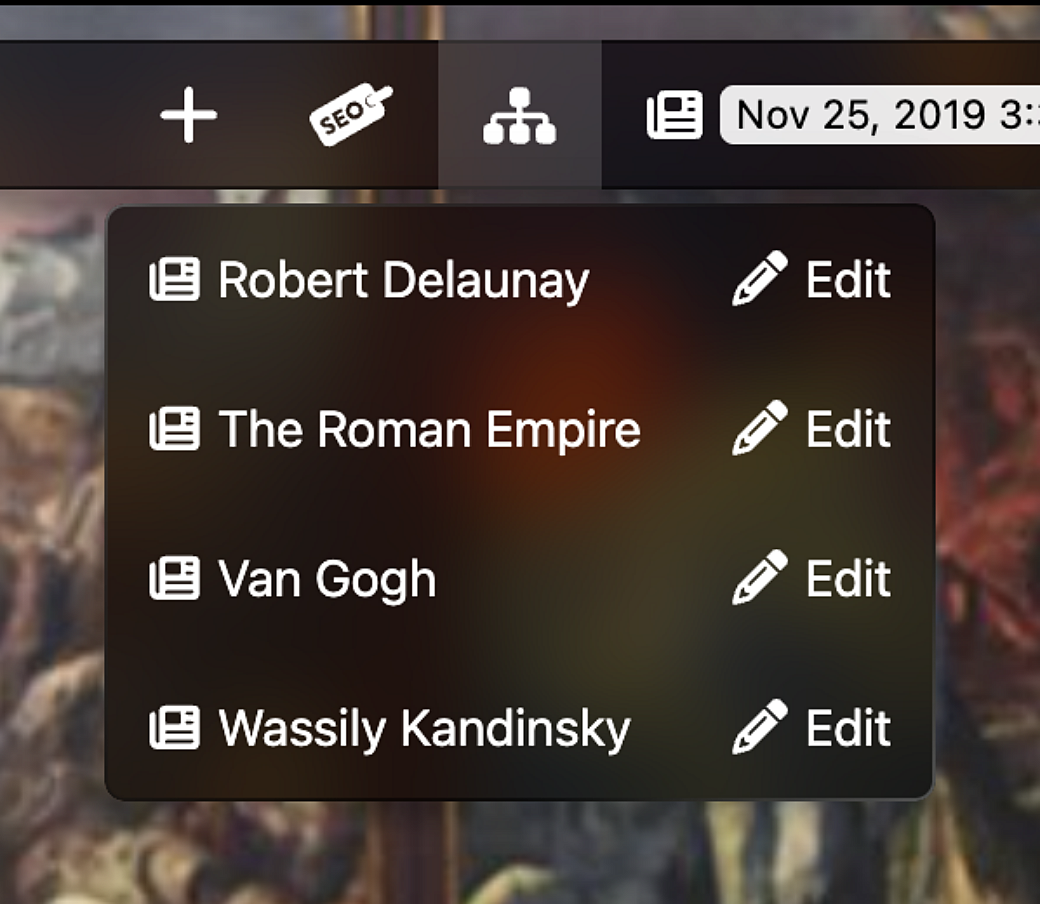
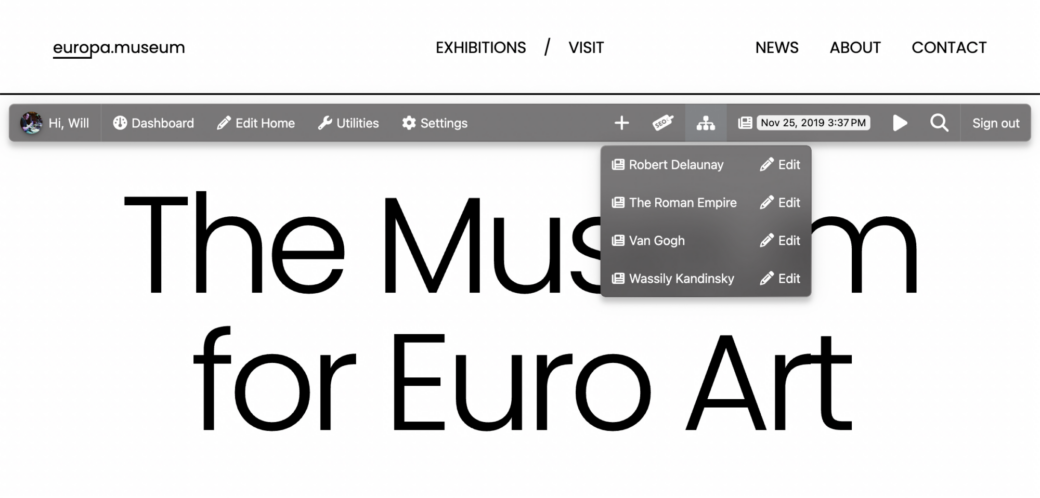
Shows all entries related to the current page entry (that the logged-in user has access to view). Clicking on an entry name goes to the entry page and clicking on the Edit button goes to the edit page for that entry.
Debug Toolbar Toggle PRO
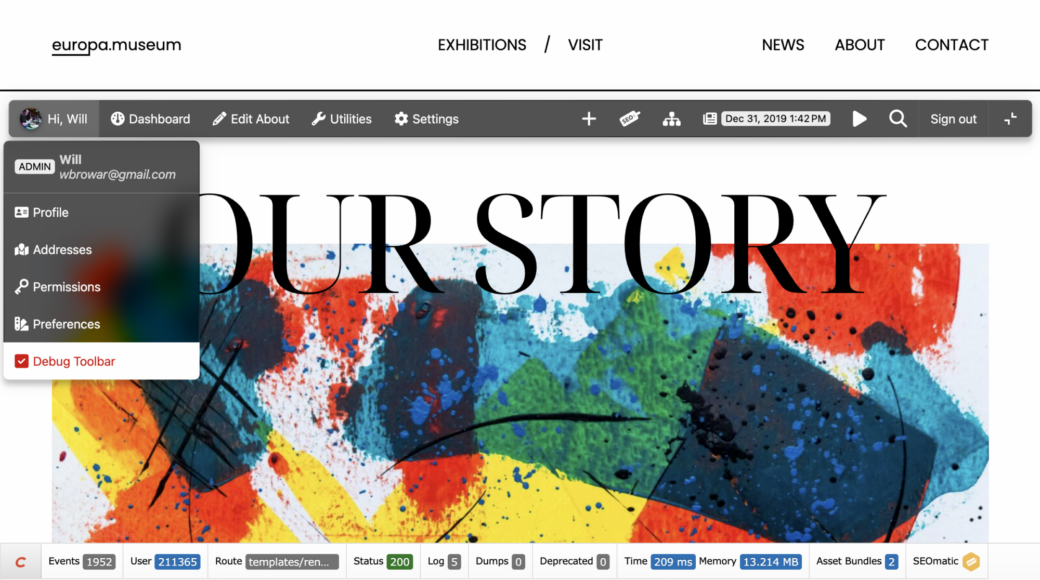
For admin users, a new option can be found under the greeting menu. Now you can toggle the Craft CMS debug toolbar on and off with a single click.
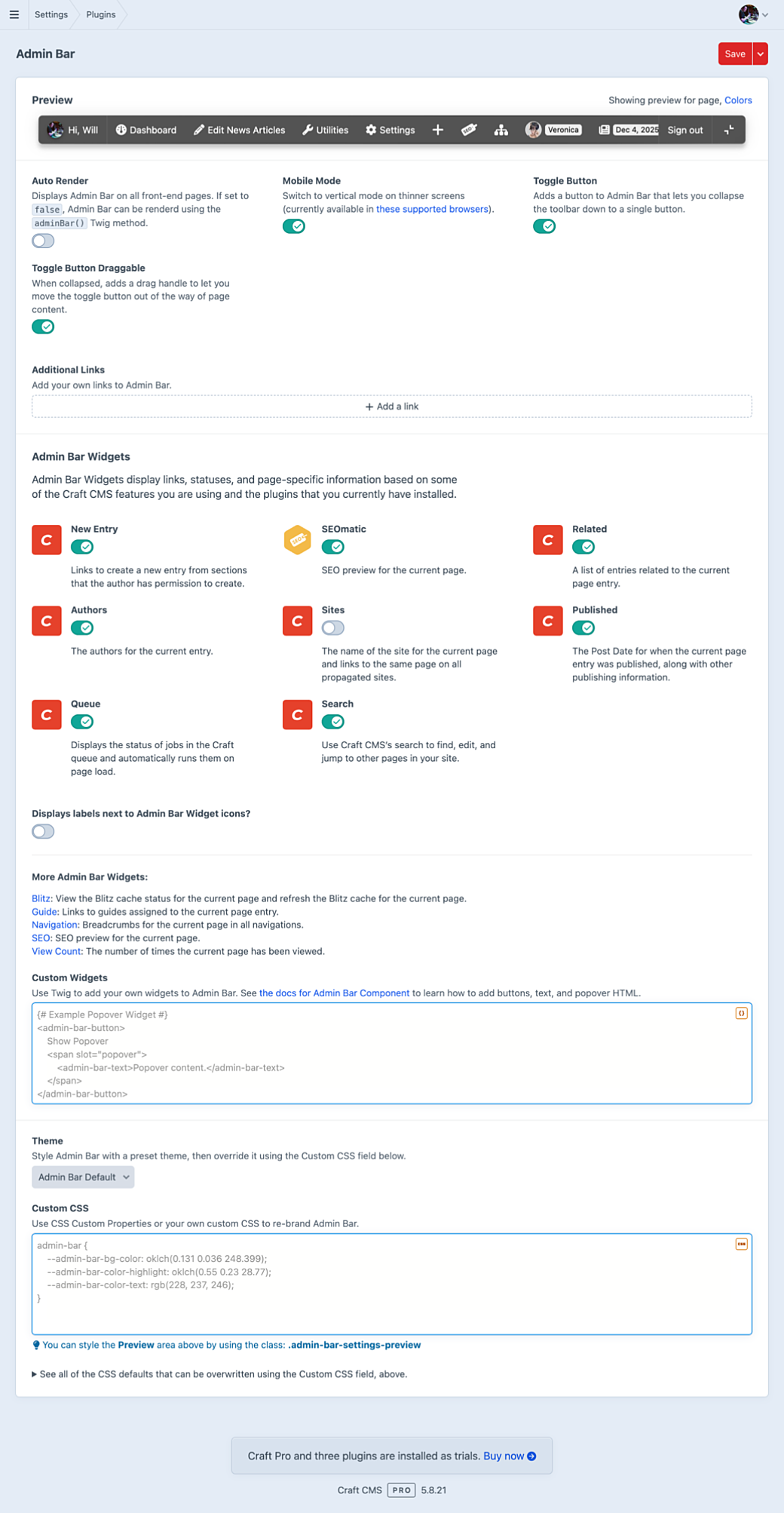
Admin Bar’s settings page has also been updated to clean things up. Some settings have been moved to a grid and the default CSS field has now been put inside of a <details> element.
Fin
A lot of these changes are built on top of a new 2.0 version of Admin Bar Component. It is currently in beta, while some more testing is being done.
If you see any issues with the new translations or accessibility changes, please reach out and let me know what problems you run into. I can see both of these as features that continue to get optimized over the coming releases.
Finally, plugin sales keep projects like this one going. If you find Admin Bar useful, consider supporting it by picking up the PRO edition—and give your clients the gift of even more awesome author experience.